
The signature holes or placeholders in a document are specific places where you predefine the location and size in which the user will reflect their name, or the stroke of their signature, during the electronic signature.
When signing a document using R2 Docuo’s advanced electronic signature (eSignature) or with an electronic certificate (eCertificate), there are two possibilities:
- That the document comes from a Microsoft Word template from R2 Docuo, in which signature holes have been drawn.
- The document is uploaded directly by a user in PDF format.
In the second case, the signature fields are not defined and, if you try to sign the document with Docuo, the signer’s name will always appear on the last page of the document, at the bottom right.
How to draw signature holes in a document uploaded directly by the user
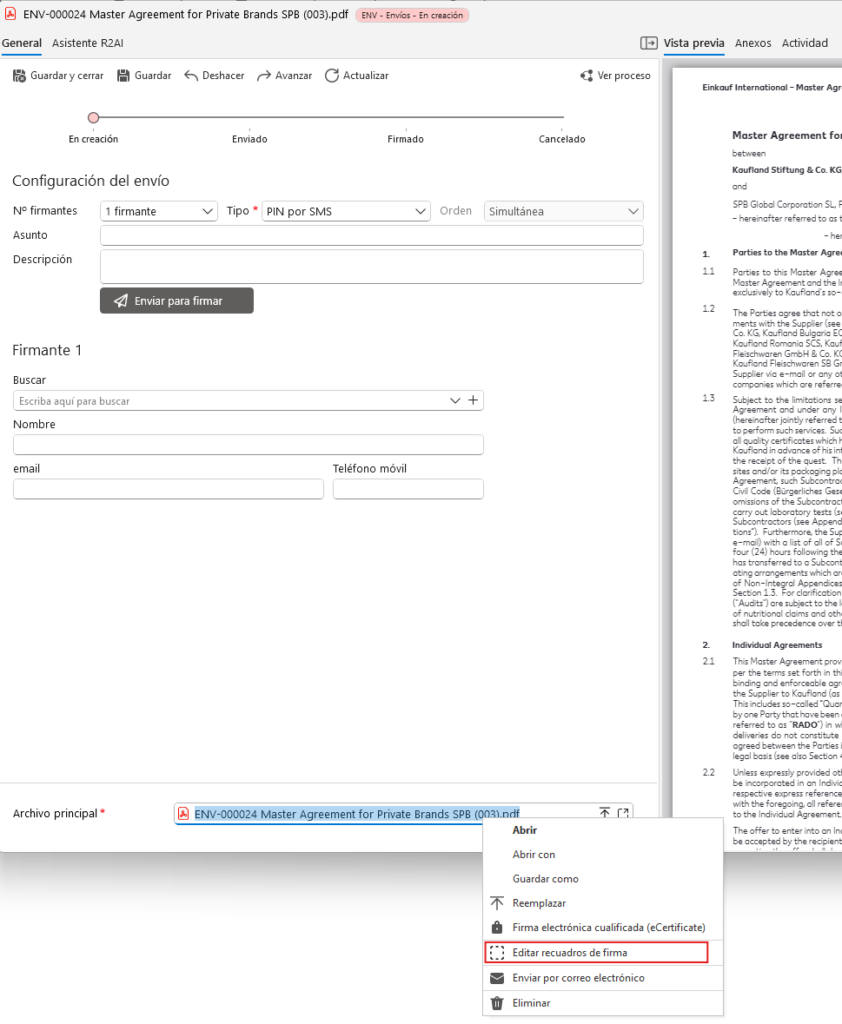
Open the document details window and locate the Main File of the document at the bottom.
Then right-click on the file and choose the option “Edit signature boxes”:
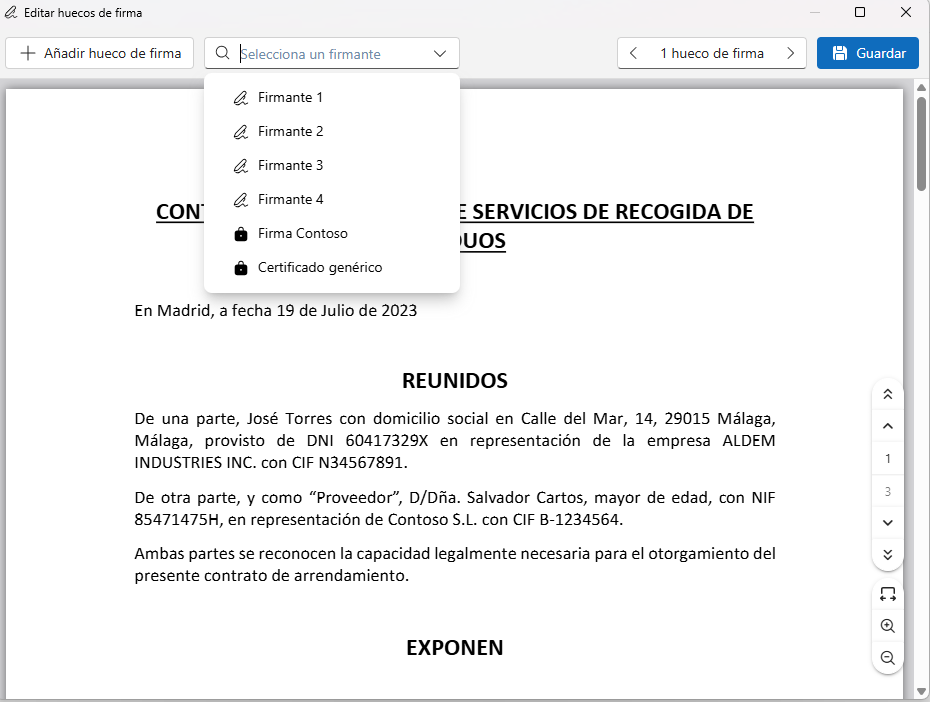
A screen like the following will appear:

The first step is to select the signature for which you want to configure the slots. In the upper part you will find a drop-down menu “Select a signer” that shows signatures of two types: Advanced Electronic Signature (eSignature) and Signature with Electronic Certificate (eCertificate).
How to draw a hole for an eSignature signature
Select Signer 1 in the “Select a signer” field and click on “Add signature hole” to draw a rectangle on the document:
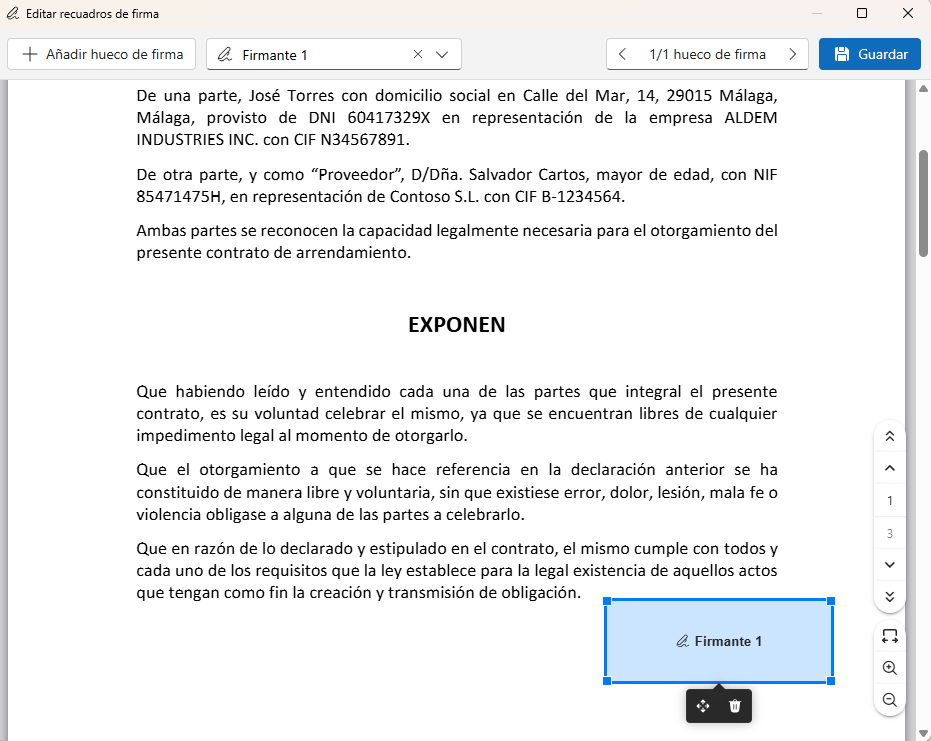
We can use the mouse to change the location and size of the hole.
Once we have finished, we click “Save” and the document is ready to be signed with eSignature.
If we wish to change the position of an existing hole later, we can do so by following the same procedure.
How to force R2 Docuo to ask for signature gaps when using an electronic signature form.
When configuring a signature form in R2 Docuo, you can choose how you want the form to behave with respect to the existence of signature slots:
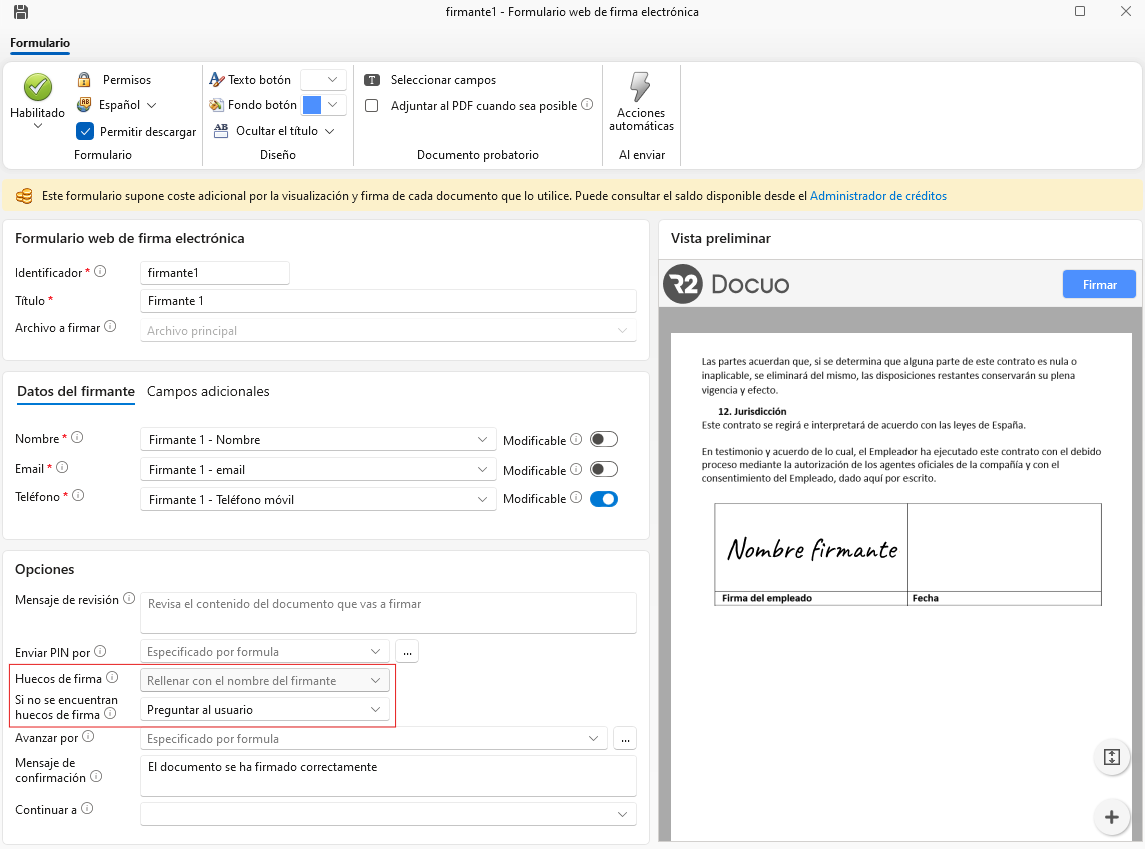
If we select“Ask user” in the parameter of what to do“If no signature gaps are found“, R2 Docuo will ask users to fill in the gaps before being able to send a document to sign using this form.
How to draw a hole for an eCertificate signature
In the “Select a signer” field, select a signature with a certificate and click “Add signature hole” to draw a rectangle on the document for that particular certificate:
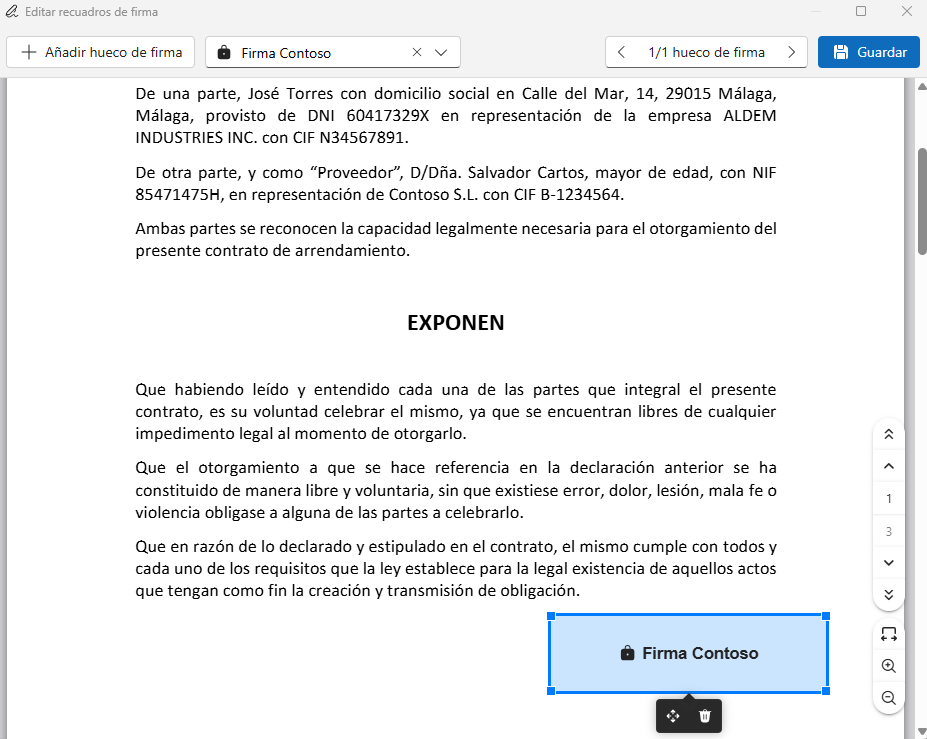
We can use the mouse to change the location and size of the hole.
Once we have finished, click “Save” and the document is ready to be signed with eCertificate.
Sign documents with eCertificate
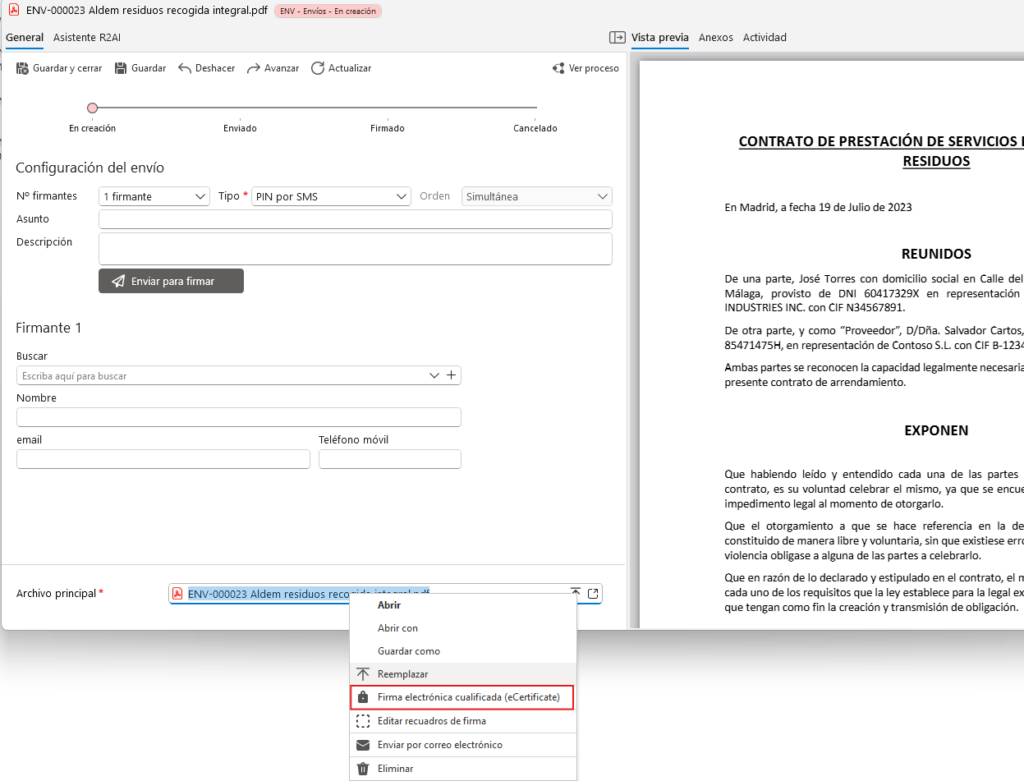
In order to sign the document right-click on the file and choose the option “Qualified electronic signature (eCertificate)”:
A screen like the following will appear:
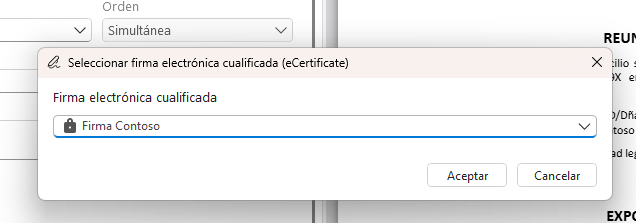
Select the signature for which we had previously configured the signature slot, and the following screen will appear:
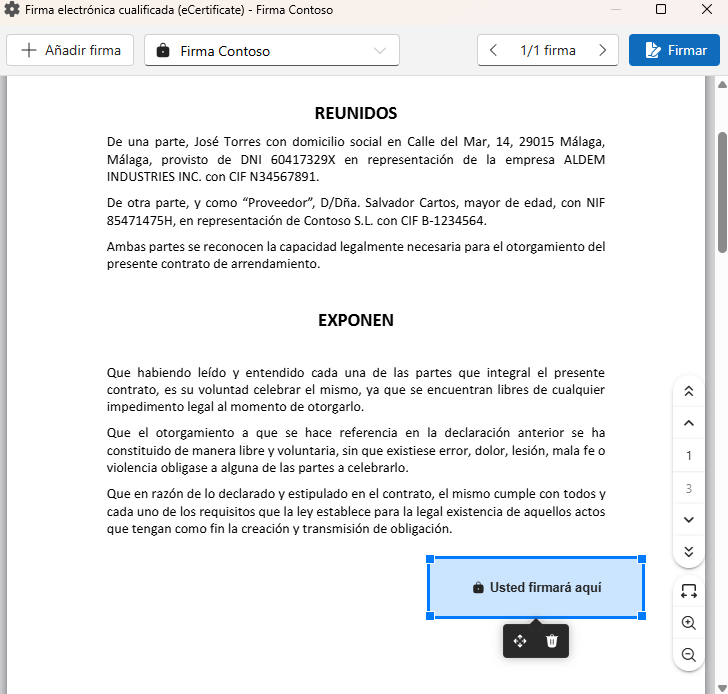
We click “Sign” and the document is already signed with our certificate in the hole that we had previously predefined.