
R2 Docuo’s Artificial Intelligence works without any setup and is paid with R2 Docuo Credits, as explained on the pricing page. If your organization already has an account on the OpenAI API platform, you can connect it with the OpenAI plugin. Your Artificial Intelligence instructions will then use your account and stop spending Credits.
What uses your OpenAI account
With the plugin set up, Artificial Intelligence instructions (the ones run on status changes, buttons or forms) use your OpenAI account. On the “Artificial Intelligence” tab of the settings they are marked with an asterisk (*). The R2AI assistant keeps using Credits.
If you delete the key, instructions go back to using Credits. To create them, see How to Create and Use Artificial Intelligence (AI) Instructions.
Prepare your OpenAI account
You need an account on the OpenAI API platform. A ChatGPT subscription is not enough: the API is contracted and paid separately.
- Go to platform.openai.com and sign in or create your account.
- Create a project for R2 Docuo from the project selector, so its usage and its key stay separate from everything else.
- In your organization settings, under “Billing“, add a payment method and buy credit. OpenAI charges by usage, based on the tokens sent and received; see its pricing.
- Inside the project, under “API keys“, click “Create new secret key“. Copy the key and keep it somewhere safe: OpenAI will not show it again.
OpenAI menus change often. If you cannot find an option, see the OpenAI help center.
Add the key to R2 Docuo
Sign in to R2 Docuo for Windows with an account that has administration privileges. This setting is not available in the web portal or the mobile apps.
- In the top bar, open the three-dot menu and choose “Settings“.
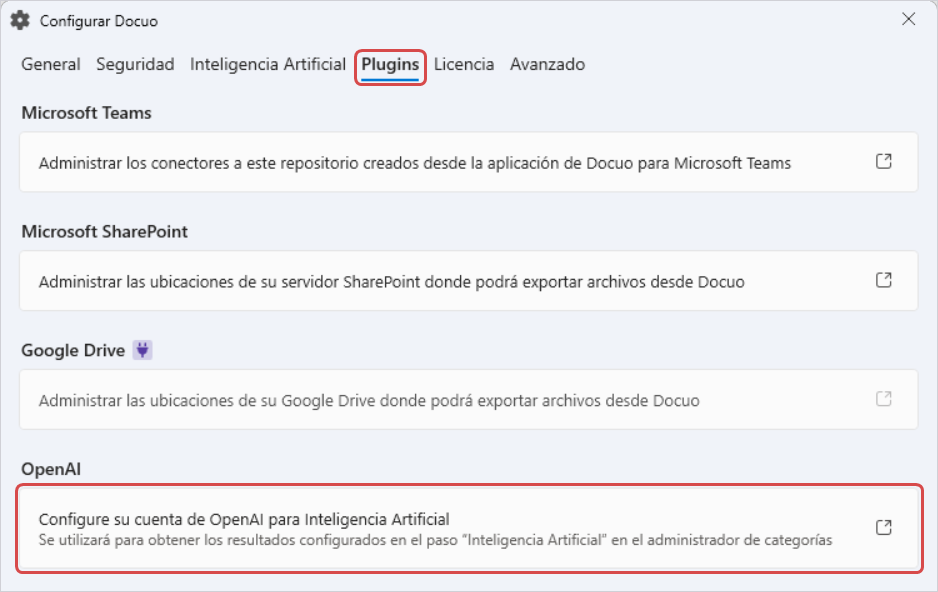
- On the “Plugins” tab, in the “OpenAI” section, click “Configure your OpenAI for Artificial Intelligence account“.
- In the “OpenAI plug-in settings” window, paste the key into the “OpenAI API Key” field and click “OK“.
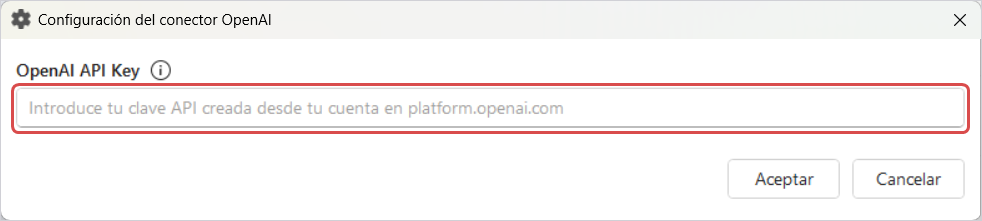
Afterwards, for security, R2 Docuo only shows the beginning and the end of the key.